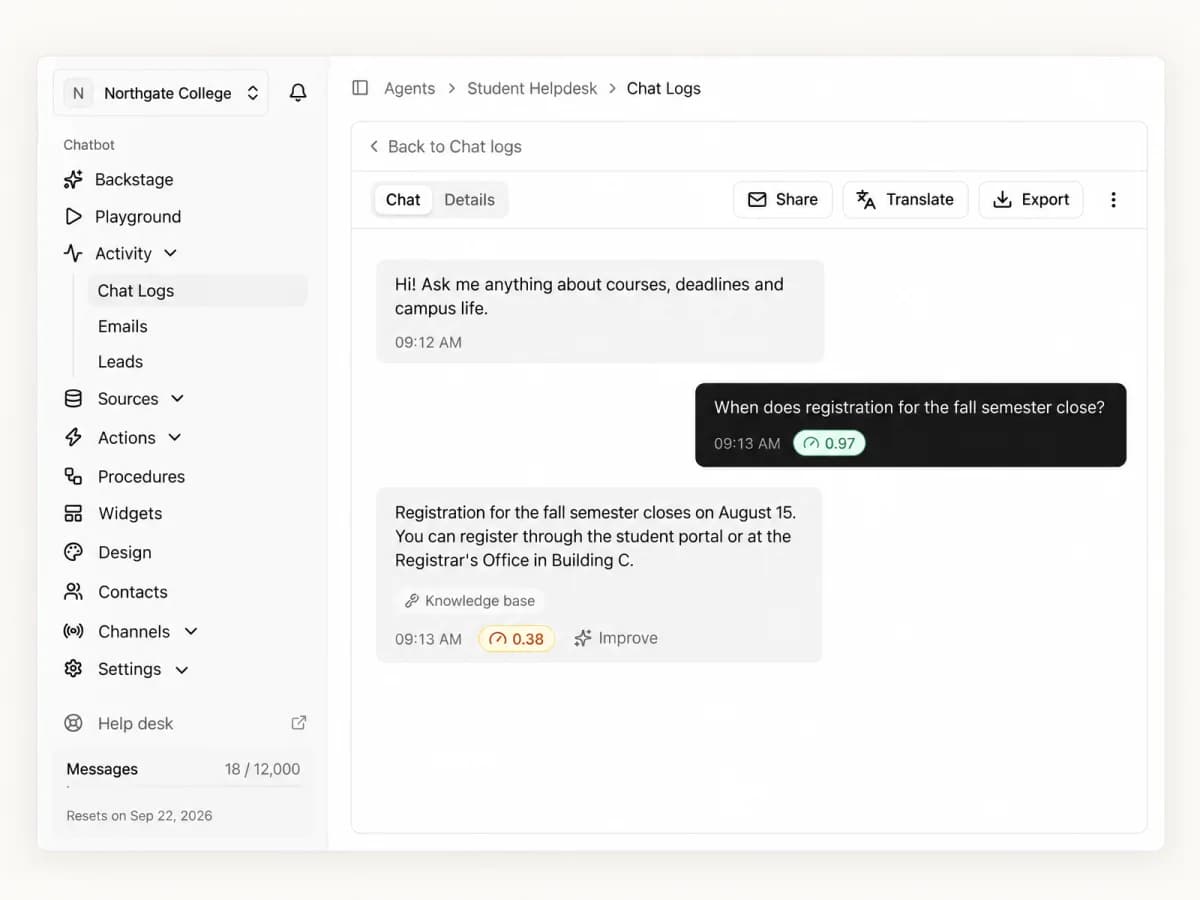
Your agent answers hundreds of questions a day. Until now, Chat Logs showed a number next to each reply that was hard to trust. A good answer could show red. A reply that needed no knowledge at all could show the same. It only measured how closely the agent's sources matched the question, not whether the reply was any good.
That number is gone. Jev from TypeSafe now scores every new reply, and you can research and fix a weak one from the same screen.
Two scores you can act on
After each reply is sent, Jev reads the conversation and gives two scores.
Response quality sits under the agent's reply. It says how well the reply answers the question using the agent's own sources. Green is a solid answer. Amber means it is thin or partly off. Red means the agent did not really answer.
Relevance sits under the visitor's message. It says how close the question is to the business the agent serves. A question about your pricing scores high. A request to switch languages, or a question about the weather, scores low.
Read the two together and Chat Logs gets useful. A low quality score on a high relevance question is a real gap worth fixing. A low quality score on a low relevance question is usually fine, because the agent was right to hold back.
The Weak answers filter and the knowledge gaps card on the analytics page now use these scores, so they point at the conversations that matter.
Fix a weak answer in one click
Under every reply there is an Improve button. Press it and Agentkit does the research for you.
- It looks through the agent's sources for passages that answer the question.
- If nothing useful is there, it checks pages on your website the agent has not learned yet.
- It drafts a better answer from what it found.
- Jev compares the draft with the current reply and checks it against the sources. If it falls short, Agentkit revises it.
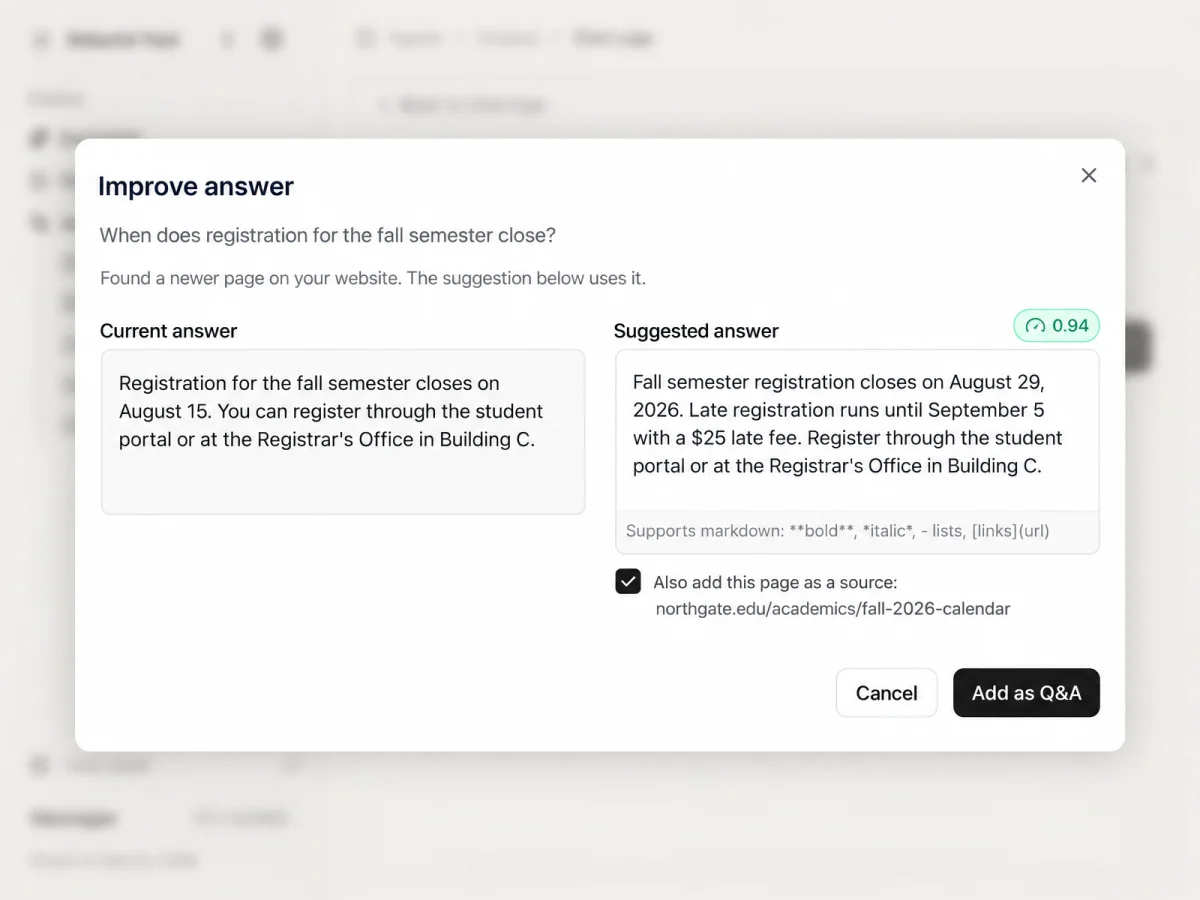
You then see the current answer and the suggestion side by side. A support score shows how well the sources back the suggestion. Edit it if you like, then add it as a Q&A pair. If the answer came from a page on your website, you can add that page as a source in the same step.
What Jev does, and does not, do
We use Jev as a judge, not as a writer. It scores what Agentkit shows it and explains why. Every Q&A pair and every new source still passes through you. A high score means the reply is well supported by the agent's sources. It does not mean the sources are right. That part stays with you.
Jev also only sees what it needs. It sees the question, the reply, the sources the agent used, a few recent messages, and your business name. Nothing else from your workspace leaves Agentkit.
Where to find it
Open Activity > Chat Logs on any agent. Scores appear on every new conversation. Older conversations keep the number they had. To try Improve, open a conversation, find a reply with an amber or red score, and press Improve.