A traditional FAQ answers the four questions you chose, then leaves everyone else to search another page or open a support ticket.
An infinite FAQ keeps the scannable part and removes that dead end. Show a few trusted answers first. Put one question field underneath. Let your Agentkit agent answer everything else right on the page. If the visitor wants to keep going, open a full chat that already contains their question and the answer.
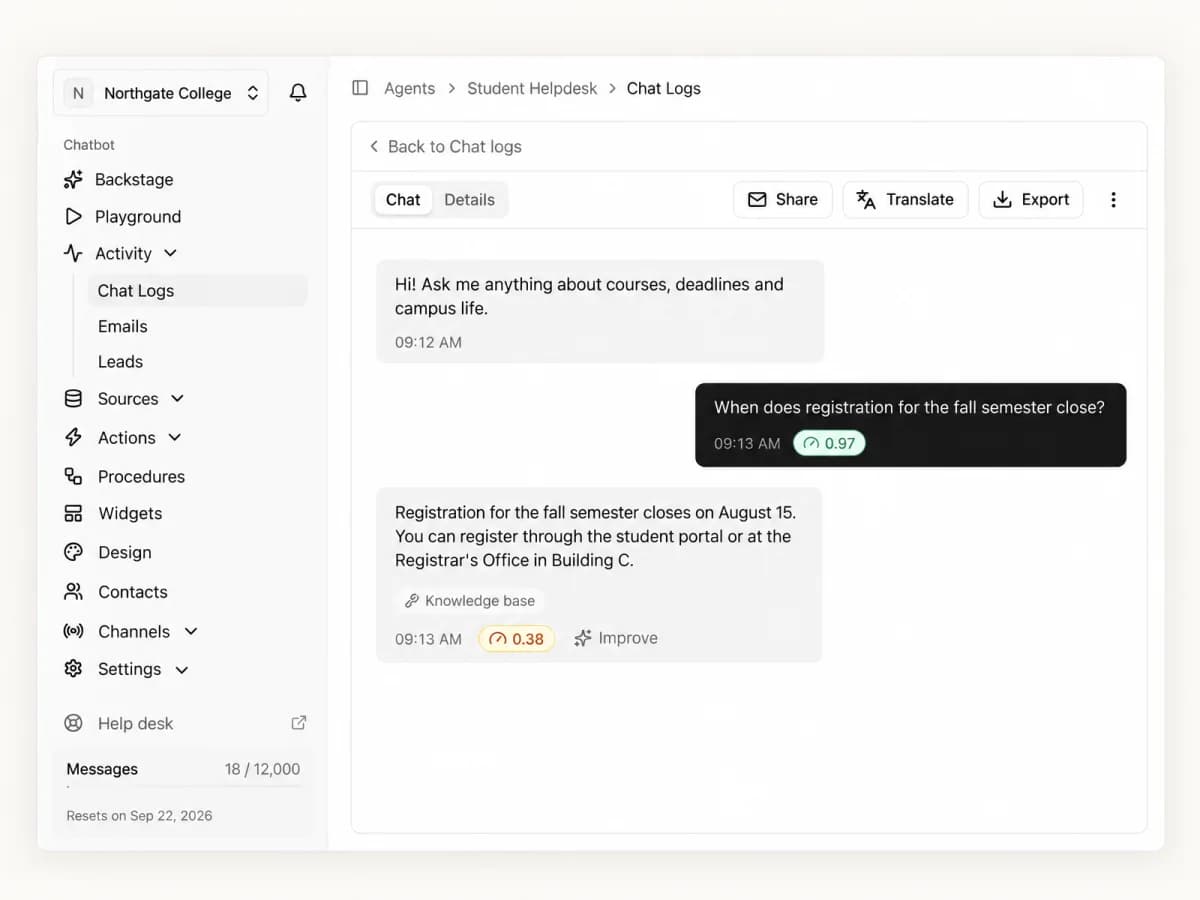
That last detail is the point. Sending the question to one API and opening a separate chatbot gives the visitor two disconnected conversations. Agentkit’s embed SDK avoids that: send adds a message to the conversation without opening the dialog, and open reveals that same conversation later.
This is the pattern behind the FAQ on the Agentkit homepage. The version below is the smallest one that works. Copy it into any HTML page, or hand it to your coding agent.
What You Are Building
- A few normal FAQ rows give instant, crawlable answers.
- A question form sends a message while Center Stage stays closed, and shows the reply inline.
- An arrow opens that same conversation in Center Stage.
The fixed answers stay plain HTML. They load instantly, work without JavaScript, and are readable by search engines and screen readers. The agent handles the long tail instead of replacing content you already know visitors need.
1. Prepare the Agent and Enable Center Stage
Create an agent and add its sources. Add explicit Q&A sources for the predictable questions so the canonical wording wins, and your website or documentation for the rest. Test a few questions before embedding anything, including one outside the agent’s scope. The inline answer is only as good as the agent behind it.
Then open the agent’s Channels settings and enable Center Stage. It is a focused dialog rather than a corner bubble, which fits a visitor who has just moved from browsing answers to asking a specific question. Only mount one Agentkit presentation per page, so do not also load a bubble embed.
2. Install the Embed
Copy the snippet from the Channels page. The small queue at the top makes SDK calls safe even before the async widget bundle has loaded.
<script>
  (function (w) {
    if (w.agentkit) return;
    var q = [];
    var agentkit = function () { q.push(arguments); };
    agentkit.q = q;
    w.agentkit = agentkit;
  })(window);
</script>
<script
  async
  data-chatbot="YOUR_AGENT_ID"
  data-display="center-stage"
  src="https://agentkit.ai/dist/agentkit-chatbot.js">
</script>
Use the widget host shown on your own Channels page if it differs from agentkit.ai.
3. Add the FAQ and the Question Form
The fixed questions use native details elements. The answer paragraph uses aria-live so a screen reader announces the reply when it arrives.
<section>
  <h2>Questions</h2>

  <details>
    <summary>What does your product do?</summary>
    <p>Your canonical short answer goes here.</p>
  </details>
  <!-- Add a few more high-volume questions. -->

  <form id="ai-faq-form">
    <label for="ai-faq-question">Ask anything else</label>
    <input id="ai-faq-question" maxlength="500" required>
    <button type="submit">Ask</button>
    <button id="open-chat" type="button" aria-label="Continue in chat">→</button>
  </form>

  <p id="ai-faq-answer" aria-live="polite"></p>
</section>
Keep the form small. It is an escape hatch from the FAQ, not a second chat composer.
4. Send, Show the Answer, Continue in Chat
Submitting the form sends the question with the dialog closed. The next assistant-message event carries the completed answer, which the script writes into the page. The arrow calls open without sending anything again, because the conversation already holds the question and the answer.
<script>
  var form = document.querySelector('#ai-faq-form');
  var input = document.querySelector('#ai-faq-question');
  var answer = document.querySelector('#ai-faq-answer');
  var waiting = false;
  var timer = null;

  window.agentkit('addEventListener', 'assistant-message', function (event) {
    if (!waiting) return;
    waiting = false;
    clearTimeout(timer);
    answer.textContent = event.detail.content;
  });

  form.addEventListener('submit', function (event) {
    event.preventDefault();
    var message = input.value.trim();
    if (!message || waiting) return;

    waiting = true;
    answer.textContent = 'Finding the answer…';
    window.agentkit('send', { message: message });

    // If the send was refused or nothing comes back, let the visitor retry.
    timer = setTimeout(function () {
      if (!waiting) return;
      waiting = false;
      answer.textContent = 'No answer yet. Try again or open the chat.';
    }, 30000);
  });

  document.querySelector('#open-chat').addEventListener('click', function () {
    window.agentkit('open');
  });
</script>
send goes through the same checks as a message typed inside the dialog. Empty messages, concurrent sends, rate limits, a disabled composer, and live-chat takeovers are refused, which is why the timeout exists. The page never shows the widget’s own error UI while the dialog is closed.
Going Further
The homepage version adds a few refinements on top of this base. Add them when you need them.
- Answer as they type. Debounce the input and send once the visitor pauses, so Return is optional and the arrow is reserved for opening chat.
- Confirm the send was accepted. Listen for
user-messageand only accept the nextassistant-messageafter your own question came through. The embed SDK docs show this pattern. - Clear stale answers. Wipe the answer as soon as the visitor edits the question, so old output never sits next to new input.
- Clean up in single-page apps. Pass the same function reference to
removeEventListenerwhen the component unmounts. - Test on a phone. Center Stage fills the small viewport, traps focus, and returns focus to the arrow when closed. Your form still needs its own label and visible pending state.
When to Use the REST API Instead
The embed SDK is the right tool here because it owns the conversation Center Stage later opens. Use API v2 for server-to-server chat, a fully custom chat interface, exports, or source management. Its workspace bearer key belongs on your server, never in page JavaScript, and its conversations are separate from web conversations by design. If browser handoff into chat is the goal, use send and open.
The Design Rule
Use static answers for what you know people ask. Use the agent for what you did not predict. Keep one conversation when the visitor moves from the page into chat.